> ## Documentation Index
> Fetch the complete documentation index at: https://mintlify-update-mintlify-cc-domain.mintlify.site/llms.txt
> Use this file to discover all available pages before exploring further.
# Configure the assistant
> Configure the AI assistant in your Mintlify dashboard: toggle availability, customize responses, add starter questions, set bot protection, and manage billing.
Configure the assistant on the [Assistant](https://dashboard.mintlify.com/products/assistant) page of your dashboard. Manage billing and usage on the [Usage](https://dashboard.mintlify.com/settings/organization/usage) page.
## Enable or disable the assistant
Toggle the assistant status to enable or disable the assistant for your documentation site.

 ## Set deflection email
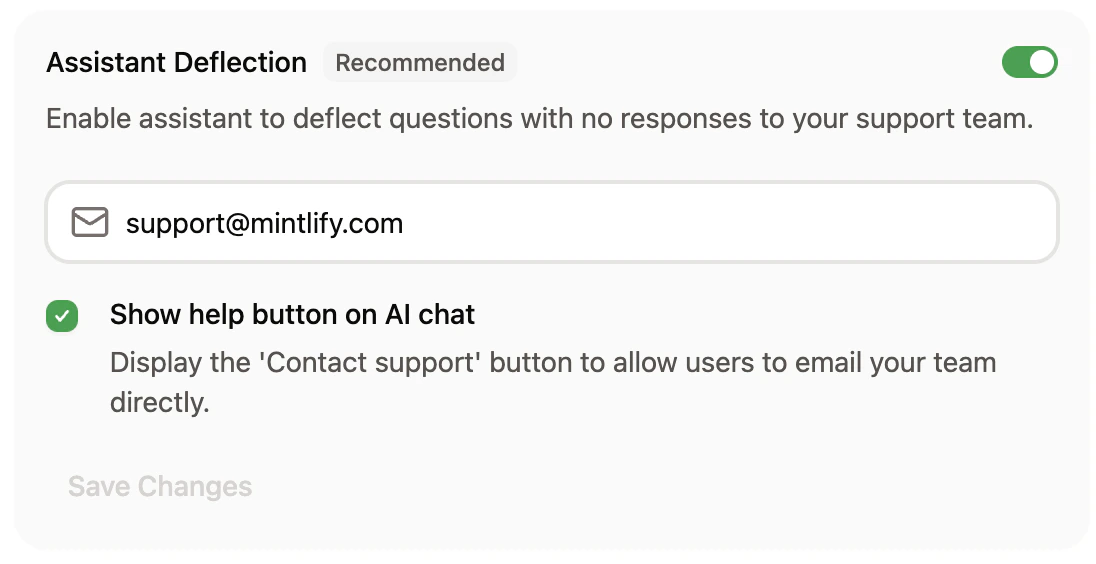
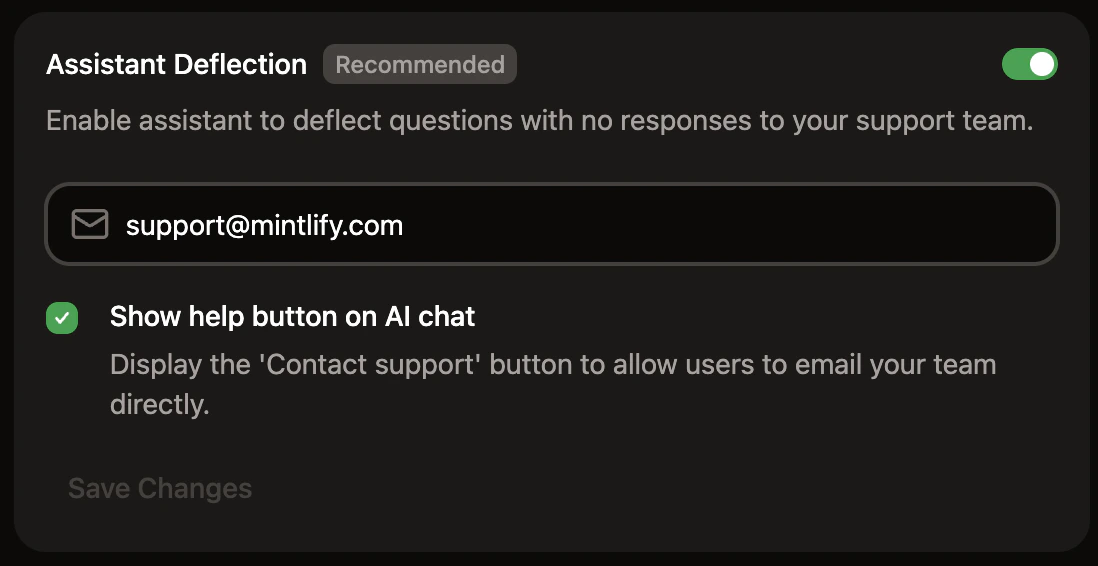
In the Response Handling section, enable the assistant to redirect unanswered questions to your support team.
Specify an email address for the assistant to give to users if it cannot answer their question. You can also enable a "Contact support" button to appear in the assistant chat panel.
## Set deflection email
In the Response Handling section, enable the assistant to redirect unanswered questions to your support team.
Specify an email address for the assistant to give to users if it cannot answer their question. You can also enable a "Contact support" button to appear in the assistant chat panel.
 ## Search domains
In the Response Handling section, configure domains that the assistant can use for web search to find additional context when answering questions.
* Domains must be publicly available.
* Domains that require JavaScript to load are not supported.
## Search domains
In the Response Handling section, configure domains that the assistant can use for web search to find additional context when answering questions.
* Domains must be publicly available.
* Domains that require JavaScript to load are not supported.
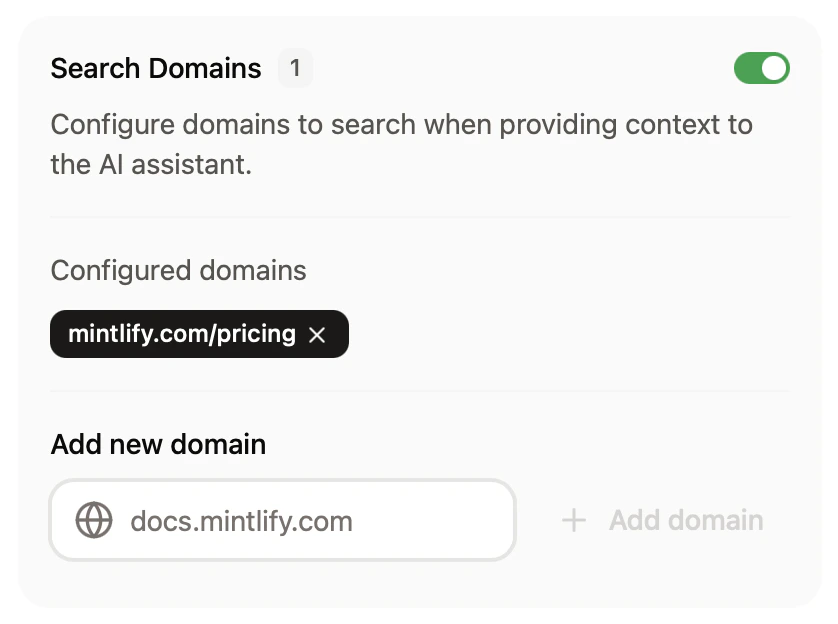
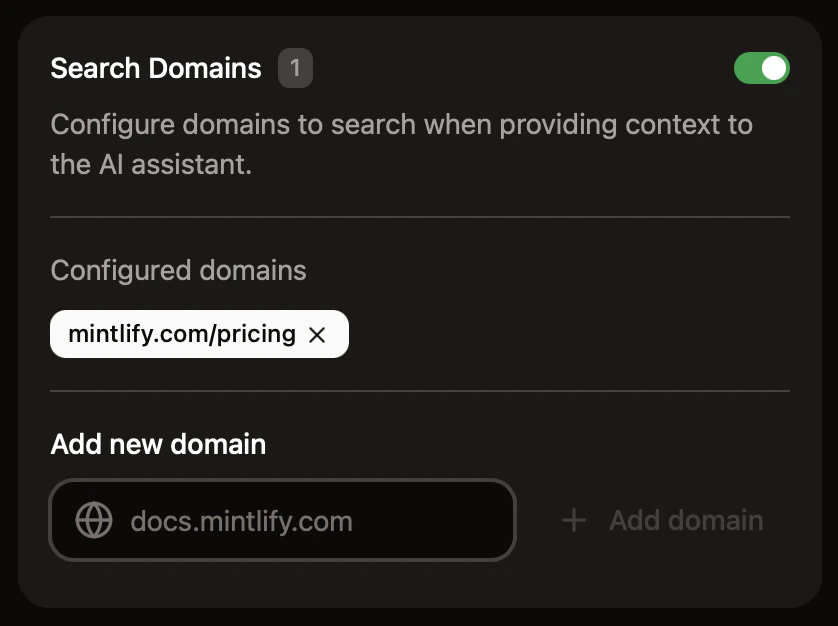 For more precise control over what the assistant can search, use filtering syntax.
* **Domain-level filtering**
* `example.com`: Search only the `example.com` domain
* `docs.example.com`: Search only the `docs.example.com` subdomain
* `*.example.com`: Search all subdomains of `example.com`
* **Path-level filtering**
* `docs.example.com/api`: Search all pages under the `/api` subpath
* **Multiple patterns**
* Add multiple entries to target different sections of sites
## Add sample questions
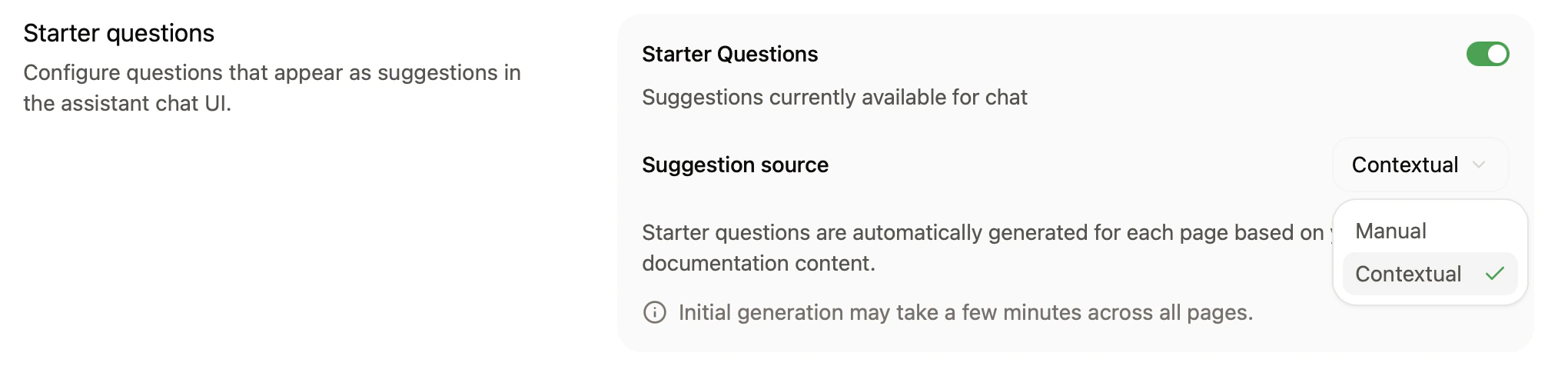
Help your users begin conversations with the assistant by adding starter questions.
The assistant can generate page-specific questions based on the page a user is viewing or you can add persistent questions that are available across pages.
You can add up to three starter questions. Click **Ask Assistant** for recommended questions based on your documentation.
For more precise control over what the assistant can search, use filtering syntax.
* **Domain-level filtering**
* `example.com`: Search only the `example.com` domain
* `docs.example.com`: Search only the `docs.example.com` subdomain
* `*.example.com`: Search all subdomains of `example.com`
* **Path-level filtering**
* `docs.example.com/api`: Search all pages under the `/api` subpath
* **Multiple patterns**
* Add multiple entries to target different sections of sites
## Add sample questions
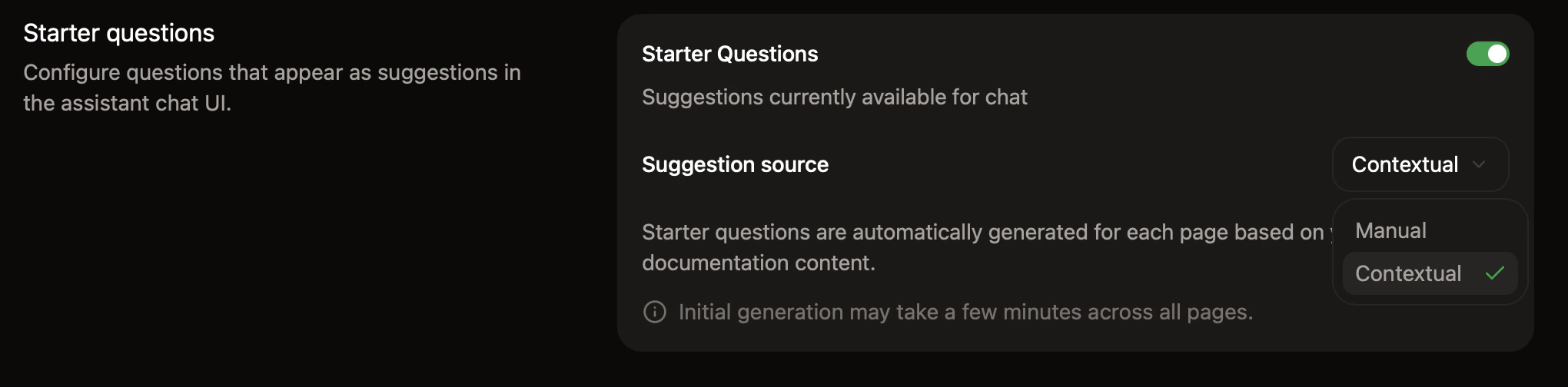
Help your users begin conversations with the assistant by adding starter questions.
The assistant can generate page-specific questions based on the page a user is viewing or you can add persistent questions that are available across pages.
You can add up to three starter questions. Click **Ask Assistant** for recommended questions based on your documentation.
 ## Bot protection
In the Bot Protection section, enable invisible captcha to protect your assistant from automated abuse. The bot protection is privacy-friendly and invisible to nearly all visitors.
To enable bot protection:
1. Go to the [Assistant settings](https://dashboard.mintlify.com/products/assistant/settings) page in your dashboard.
2. In the **Bot Protection** section, toggle **Invisible Captcha** on.
Changes take up to 10 minutes to propagate.
If you use custom [Content Security Policy headers](/deploy/csp-configuration), you must include `hcaptcha.com` and `*.hcaptcha.com` in your allowlist.
## Manage billing
The assistant uses credit packages with monthly allowances. Each assistant message consumes one credit. A message is any user interaction with the assistant that receives a correct response.
If you have unused credits at the end of the month, up to half of your credit allowance can carry over to the next billing cycle. For example, if you have a 1,000 credit allowance and you use 300 credits, 500 credits carry over to the next billing cycle giving you a total of 1,500 credits for the next billing cycle.
By default, overages are disabled. With overages disabled, the assistant is unavailable once you reach your credit allowance and remains unavailable until your allowance resets. You can enable overages to keep the assistant available beyond your package allowance. If you enable overages, each credit beyond your allowance incurs an overage charge, but occasional overages may be cheaper than upgrading to a higher package depending on your usage.
### Enable the assistant on the Hobby plan
If you're on the Hobby plan, you can add the assistant to your site by purchasing a credit package without upgrading to Pro. The assistant is enabled as soon as your purchase completes and remains active for as long as you have an active credit package.
To purchase a credit package on the Hobby plan:
1. Go to the [Usage](https://dashboard.mintlify.com/settings/organization/usage) page of your dashboard.
2. In the **Credit packages** section, select a package from the dropdown menu.
3. Confirm the change to be redirected to checkout.
To stop the assistant, downgrade your credit package to the lowest tier. Your plan returns to Hobby and the assistant is disabled at the end of the current billing cycle.
### Change your assistant package
Packages determine your monthly credit allowance and pricing.
View and change your current package on the [Usage](https://dashboard.mintlify.com/settings/organization/usage) page of your dashboard. You can also reach the Usage page by selecting **View usage** next to **Billing portal** on the Billing page.
In the **Credit packages** section, select your preferred package from the dropdown menu.
**Upgrade your package:**
* Your new credit allowance is available immediately.
* You pay a prorated difference for the current billing cycle.
**Downgrade your package:**
* Your credit allowance updates immediately.
* Pricing changes take effect at the start of your next billing cycle.
* Unused credits from your current package **do not** carry over.
### Allow overages
Overages are disabled by default. To allow overages, enable them in the **Billing controls** section of the [Usage](https://dashboard.mintlify.com/settings/organization/usage) page of your dashboard.
### Set usage alerts
In the **Billing controls** section, set usage alerts to receive an email when you reach a certain percentage of your credit allowance.
## Bot protection
In the Bot Protection section, enable invisible captcha to protect your assistant from automated abuse. The bot protection is privacy-friendly and invisible to nearly all visitors.
To enable bot protection:
1. Go to the [Assistant settings](https://dashboard.mintlify.com/products/assistant/settings) page in your dashboard.
2. In the **Bot Protection** section, toggle **Invisible Captcha** on.
Changes take up to 10 minutes to propagate.
If you use custom [Content Security Policy headers](/deploy/csp-configuration), you must include `hcaptcha.com` and `*.hcaptcha.com` in your allowlist.
## Manage billing
The assistant uses credit packages with monthly allowances. Each assistant message consumes one credit. A message is any user interaction with the assistant that receives a correct response.
If you have unused credits at the end of the month, up to half of your credit allowance can carry over to the next billing cycle. For example, if you have a 1,000 credit allowance and you use 300 credits, 500 credits carry over to the next billing cycle giving you a total of 1,500 credits for the next billing cycle.
By default, overages are disabled. With overages disabled, the assistant is unavailable once you reach your credit allowance and remains unavailable until your allowance resets. You can enable overages to keep the assistant available beyond your package allowance. If you enable overages, each credit beyond your allowance incurs an overage charge, but occasional overages may be cheaper than upgrading to a higher package depending on your usage.
### Enable the assistant on the Hobby plan
If you're on the Hobby plan, you can add the assistant to your site by purchasing a credit package without upgrading to Pro. The assistant is enabled as soon as your purchase completes and remains active for as long as you have an active credit package.
To purchase a credit package on the Hobby plan:
1. Go to the [Usage](https://dashboard.mintlify.com/settings/organization/usage) page of your dashboard.
2. In the **Credit packages** section, select a package from the dropdown menu.
3. Confirm the change to be redirected to checkout.
To stop the assistant, downgrade your credit package to the lowest tier. Your plan returns to Hobby and the assistant is disabled at the end of the current billing cycle.
### Change your assistant package
Packages determine your monthly credit allowance and pricing.
View and change your current package on the [Usage](https://dashboard.mintlify.com/settings/organization/usage) page of your dashboard. You can also reach the Usage page by selecting **View usage** next to **Billing portal** on the Billing page.
In the **Credit packages** section, select your preferred package from the dropdown menu.
**Upgrade your package:**
* Your new credit allowance is available immediately.
* You pay a prorated difference for the current billing cycle.
**Downgrade your package:**
* Your credit allowance updates immediately.
* Pricing changes take effect at the start of your next billing cycle.
* Unused credits from your current package **do not** carry over.
### Allow overages
Overages are disabled by default. To allow overages, enable them in the **Billing controls** section of the [Usage](https://dashboard.mintlify.com/settings/organization/usage) page of your dashboard.
### Set usage alerts
In the **Billing controls** section, set usage alerts to receive an email when you reach a certain percentage of your credit allowance.